Nov 16, 2012 | My Digital Studio |
Be sure to come back for more updates – I’ll have several posts today but wanted to start first with this creative one – then I’ll let you in on all the sales, new items, and announcements from Stampin’ Up! – don’t miss the rest of my posts today.
This week I hosted my neighborhood Pokeeno group for our monthly game night. I decided to do a tailgate theme and wanted to do some decorating to suit the theme. After searching around for ideas this is what I came up with. My table setup –

Yes I found another way to use my packing paper from my Stampin’ Up! orders. I covered my folding tables – I had two 6 foot tables end to end. I taped the paper down – it was exactly the width of my tables. Then I got out some white paint and put strips across the paper for the yard lines. I used my retired stamp set – Headline Numbers and Headline Alphabet – to stamp the yard numbers and the end zone. I used a sponge to apply the paint to my stamp and when I was down I washed all the paint off and cleaned them really well. Didn’t it turn out so well? And the yard lines worked out perfectly – you know the paper has sections – I painted a yard line every 1-1/2 sections and it was perfect!
Here are my snack bags –

I used small paper bags – I cut about 2″ off the top then folded the tops down a few times so the bags would stay open. I used My Digital Studio to print banners with various football themed phrases, printed them on my home computer, cut them out and stapled them to each bag. The bags were filled with pretzels, peanuts, popcorn, chips and I even got Cracker Jacks! Football snacks!
And I made cupcakes and had to decorate those too –

Again I used My Digital Studio – put circle punches on the page, filled them with color and added stamps in White to each one. I printed on my home computer and then punched out with a circle punch. Glue two circle together with a small skewer in between. Quick decorations and a fun evening with friends.
It’s football season – have yourself a little party without spending a lot of money on decorations.

Nov 5, 2012 | My Digital Studio |
I have a couple of really quick My Digital Studio Projects –

This one is a 5×7 framed piece. I used a template that came in the Home for the Holidays ensemble. Printed it at home as a 5×7 image. Cut it out and put it in this frame. I punched out a silver glimmer star and added it to the glass and added some small rhinestones to the tops of the smaller trees. I also tied a piece of Very Vanilla seam binding around the frame.
It took less than 15 minutes to make this cute project.

This one is a little iron on project. I had a little shirt for my Build-a-Bear and I designed a quick little iron on piece – printed it on the Iron-on transfer paper and ironed-it on the front of the little shirt.
I also made another one for a baby onesie but have’t ironed it on yet. I’ll do that soon and post it too.
Remember today is the last day to download your free Digital Downloads from Stampin’ Up!. Even if you don’t have My Digital Studio you can still use these in other digital programs. Go to my website and in my online store there is a tab for free downloads – there are 3 of them – add them to your shopping cart and check out.
Have a good evening!
Nov 2, 2012 | My Digital Studio, Tags |
I made some quick tags in My Digital Studio using the free Digital download – Days in December. Each set of photos shows the front and back of the tag design.


Be sure to visit your demonstrator’s website and go to the online store by clicking SHOP NOW. Login to your account or create one. Then select Free Downloads and add all three to your shopping cart and check out. They will be added to your account for you to download and install when you are ready. You can use these with other applications besides My Digital Studio. But the new features in My Digital Studio 2 are awesome and your going to want to give it a try – which you can for Free for 30 days – so add that to your shopping cart if you need to. If you don’t have a demonstrator already – I’d be happy to be yours. My website is www.monika.stampinup.net so go there and start shopping.
I have had several people ask how I would print these tags. I would use the Stampin’ Up! professional print service and print them that way – they print double sided with a hole in the top corner to add ribbon or twine for hanging them on gifts. Stampin’ up has reduced the price of the printing and if you print in bulk it is even less. You can see the pricing on MyDigitalStudio.net.
Have a great weekend!
Oct 30, 2012 | My Digital Studio, Scrapbook Pages |
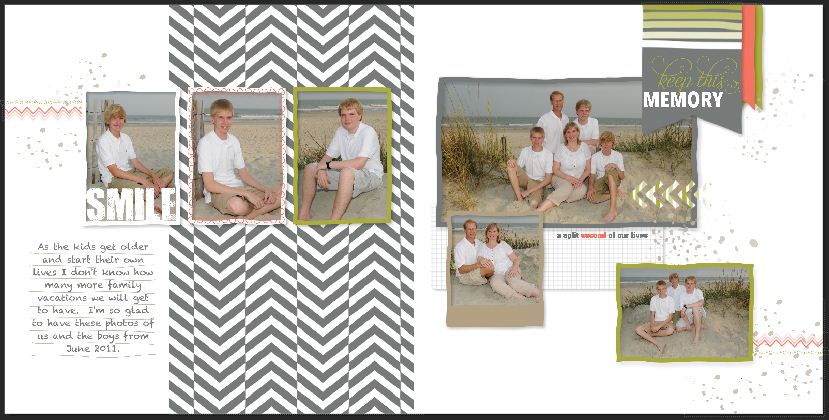
This week Stampin’ Up! is celebrating Digital Scrapbook Day – yep one day wasn’t enough so we are celebrating all week. You can get free downloads, 50% off Digital kits and have fun creating with My Digital Studio 2! Monday morning I downloaded my three free downloads – A Split Second Designer Template, Days in December Kit, and Enjoying Everything Kit.
I started right away and made a couple of creations using the A Split Second Designer Template –

This is basically the template with a few changes. I added an extra photo box with a frame and then matched the little elements from the left page. I added more journaling lines – but didn’t need the full block so I cropped it (great new feature!). I changed my title and used the coloring feature to make it two colors (LOVE that new feature!). And I changed the background on the right page. I added all my pictures – it was done very quickly.
But then I wanted to use the fun elements from this download for something else so I made this

The chevron background paper reminded me of our convention bags we got this past year. Cindy was so excited to get this bag. I recolored the paper for this page using the Summer Starfruit. Add some frames around my picture and then some flags behind it. A little journaling and a title and done!
You can get the A Split Second Designer Template free this week. Plus the other two. If you don’t have My Digital Studio 2 – you can download the trial version and use it free for 30 days. Or you can use the elements in this download in other applications too. To get your go to my online store – www.monika.stampinup.net – and if you live local to me come join Cindy and I at the Panera Bread in Towne Lake tonight – Tuesday at 6:30 – we’ll be having a Digi Crop and playing with My Digital Studio2. See you there!
Oct 23, 2012 | My Digital Studio |
It’s Tuesday and Stampin’ UP! has some new digital downloads for My Digital Studio – check them out on my website here.
Check for current updates on your software – Stampin’ Up! is working hard to get the last few features finished and they have been releasing updates so check often.
Keep in mind Holiday Shipping Dates for your print projects (and reduced pricing too!) –
My Digital Studio print products make for awesome presents that have a personal touch. Make sure to order them by December 6 to get them in time for Christmas (by December 24, to be exact)! Or, if you need a little extra design time, take advantage of expedited shipping and order by December 10 for US Second-Day Air and by December 11 for US Next-Day Air.
AND
Look what’s coming!

What do you get when you combine Digital Scrapbooking Day and My Digital Studio? A week of FREE downloads and 50 percent off ALL digital kits!
Mark your calendar for October 29 to November 5 for our week long Digital Scrapbooking Day celebration where you’ll get:
- FREE digital downloads
- 50% off ALL digital kits
- Creative project ideas
- Digital project challenges
What: Three FREE downloads. 50% off ALL digital kits. Mega blogging on MyDigitalStudio.net all week!
When: October 29-November 5, 2012.
Get Your FREE Downloads: Customers can get theirs from my online store. If you are a demonstrator go to the demonstrator website to get yours.
Get a BONUS FREE Download:
If we get 18,000 downloads of FREE items we’ll give you another FREE download!
Tonight is our Digi Crop night. If you are local comes join us – details are on my FB business page. Be sure to go LIKE my page.
Have a great rest of your day!
Oct 19, 2012 | Cards, Halloween, My Digital Studio, Punch Art |
Earlier this week I was playing around in My Digital Studio. I wanted to make a creation for this weeks challenge on MyDigitalStudio.net – the challenge was to create something with a Halloween theme. I ended up playing around with digital punch art. Now I don’t think creating digital punch art is any faster than real punch art. But the next 20 or 30 copies of the same creation will be 100 times easier!! And fortunately with the new Crop feature in MDS2 it is sooo much better than it was before. So I made a Mr. Bones using digital punch art –

But then I really wanted to get him out of the computer. I saved my file as a .jpg and then printed on my home computer – I printed 4 to a piece of card stock and printed it on Very Vanilla card stock. I let him sit on my table for a couple of days before deciding what to do with him. Finally he turned into a hybrid card – pretty simple really – cut out the layer – added it to a Crumb Cake card base, added some Crumb Cake Tulle and a real punch art bone! Here is the hybrid card –

What do you think? I think he is kind-of fun! Now head on over to mydigitalstudio.net – look in the samples under Halloween and go LIKE my card – each week Stampin’ Up! picks a winner of the challenge – let’s see if Mr. Bones can win this week!
Here is a supply list for you:
Crumb Cake card stock, Very Vanilla card stock, Crumb Cake Tulle, Word Window punch, Small Heart punch, Stampin’ Sponge, Crumb Cake ink
My Digital Studio:
Background
Color = SAHARA SAND 194,187,169
Stamps
Vintage Overlays\Vintage Overlays – texture 1, Color = BASIC BLACK 19,27,29
_Designer Kits\Grad Party\Grad Party – frame 4, Color = 0,0,0
_Designer Kits\Chevron\Chevron – 2 grunge, Color = BASIC BLACK 19,27,29
Splatters\Ink Splatters\Ink Splatter 4, Color = 0,0,0
Splatters\Ink Splatters\Ink Splatter 4, Color = 0,0,0
Eat, Drink & Be Scary\Eat, Drink & Be Scary – spider, Color = 0,0,0
Punches
Extras\Chevron – punches\Chevron – 7, Fill Color = WHISPER WHITE 255,255,255
Extras\Chevron – punches\Chevron – 7, Fill Color = WHISPER WHITE 255,255,255
Extras\Chevron – punches\Chevron – 7, Fill Color = WHISPER WHITE 255,255,255
Extras\Savor the Season – bow 3, Fill Color = WHISPER WHITE 255,255,255
Alphabet & Numbers\Alphabet Soup – punches\Alphabet Soup – 1, Fill Color = WHISPER WHITE 255,255,255
Alphabet & Numbers\Alphabet Soup – punches\Alphabet Soup – 1, Fill Color = WHISPER WHITE 255,255,255
Hearts\Medium Heart Punch, Fill Color = WHISPER WHITE 255,255,255
Alphabet & Numbers\Alphabet Soup – punches\Alphabet Soup – lowercase i, Fill Color = WHISPER WHITE 255,255,255
Alphabet & Numbers\Alphabet Soup – punches\Alphabet Soup – lowercase i, Fill Color = WHISPER WHITE 255,255,255
Hearts\Small Heart Punch, Fill Color = WHISPER WHITE 255,255,255
Hearts\Small Heart Punch, Fill Color = WHISPER WHITE 255,255,255
Hearts\Small Heart Punch, Fill Color = WHISPER WHITE 255,255,255
Extras\Snowflake Punch, Fill Color = WHISPER WHITE 255,255,255
Hearts\Small Heart Punch, Fill Color = WHISPER WHITE 255,255,255
Alphabet & Numbers\Alphabet Soup – punches\Alphabet Soup – 1, Fill Color = WHISPER WHITE 255,255,255
Alphabet & Numbers\Alphabet Soup – punches\Alphabet Soup – 1, Fill Color = WHISPER WHITE 255,255,255
Extras\Any Day Label Punch, Fill Color = WHISPER WHITE 255,255,255
Extras\Snowflake Punch, Fill Color = WHISPER WHITE 255,255,255
Alphabet & Numbers\Alphabet Soup – punches\Alphabet Soup – lowercase i, Fill Color = WHISPER WHITE 255,255,255
Alphabet & Numbers\Alphabet Soup – punches\Alphabet Soup – lowercase i, Fill Color = WHISPER WHITE 255,255,255
Two Step Owl Eyes 2 Punch, Fill Color = BASIC BLACK 19,27,29
Wide Oval Punch, Fill Color = BASIC BLACK 19,27,29
Extras\Flag Punch, Filled with: Designer Series Paper\_Designer Kits\Convention 2012 – designer series paper\Convention 2012 – 7
Extras\Any Day Label Punch, Fill Color = WHISPER WHITE 255,255,255
Extras\Any Day Label Punch, Fill Color = WHISPER WHITE 255,255,255
Bye!