Dec 22, 2009 | Christmas, Embossing, Holiday Mini Catalog 2009 |
 I wanted to share with a card made by my friend, Yvonne. She sent this to me for Christmas and it is gorgeous. I call it a fancy fold card. The front is scored and folded back. The ornament outline is cut on one half only so that the ornament image shows through on the front and the inside. The images from Delightful Decorations are stamped and embossed in White. The one on the inside has the half pearl from the Pretties Kit in the center.
 Yvonne added some silver cord at that fold so it sits at the top of the ornament. Either side of the card has a piece of the Flocked paper from the Christmas Cocoa Specialty paper and a layer of Whisper White card stock that was punched with the Eyelet border punch.
This card turned out great and I haven’t made one like this yet. I’m going to have to try one of these. I think the Movers & Shapers die with the various windows would work for this idea.
Thank you Yvonne for sending me this beautiful card.
I shared this on Late Night Stampers as day 11 in the 12 Days of Christmas Challenge.
Have a great day – Christmas is almost here…..

Dec 20, 2009 | Big Shot, Christmas, class, Holiday Mini Catalog 2009 |
This cute little ornament was designed by my upline Wendy Randall. I just loved it when I made it at her house and used it for my class on Friday as well. It is an ornament but could also be used as a gift tag. I am also making a snowman version – I don’t have a picture of that one yet so I’ll have to show it tomorrow.
 This uses the Stampin’ Up! Dasher stamp – what a great deal and very popular too!
And the treat cups that are in the Stampin’ Up! holiday mini catalog and these will also be in the new Occasions Mini Catalog that will begin on Jau. 5th along with a new stamp set to use it with.
The Big Shot was used to cut two Scallop circles from the Scallop Circle #2 die – it is the large circle of the two on the die. Then use the Big Shot again Stampin’ Up! Perfect Details Texturz Plate to add the swirly texture on each piece.
Sponge with Chocolate Chip ink to bring out the texture and we also sponged the scallops around the circle. Then add the white dots with the gel pen. Use the 1-3/4″ Circle punch to punch a hole in one of the circles – the hole is not in the center – so the bottom is bigger than the top edge – we pushed the punch in as far as it would reach and lined it up from side to side in the center.
Stamp Dasher in Chocolate Chip ink on Whisper White card stock. Add Dazzling Diamonds glitter to his antlers with a 2-way glue pen if you like. The “snow” in the cup is Tapioca – so put a little in the sweet treat cup – remove the adhesive from the cup and attach the cup over the stamped dasher. To do this I held the cup and the card stock above me so I could see where I was putting it – you may also be able to set the cup on the table and “see through” the white card stock to position it.
Then put the scallop circle with the hole over the sweet treat cup and trim off any white card stock that shows. Use a little bit of adhesive to hold the scallop to the sweet treat cup. On the second scallop circle I used the Tombow mutli-purpose adhesive and then glued that to the back matching it to the one in the front.
To finish add a piece of the red polka dot ribbon and silver cord for a hanger.
It is really cute! Thanks Wendy for sharing it with me.
Have a wonderful day!
Dec 19, 2009 | Christmas, Holiday Mini Catalog 2009, Scrapbook Pages |
Hi everyone – the WOW Scrapbook Kit for December is now posted on the our Blog. Wendy and I have both been busy and during the holidays our schedule is off – I know I’m late getting everything posted to the blog. We are working together on this project to bring you some WOW scrapbook pages throughout the year. The December kit includes two Christmas layouts and one New Year layout – of course you can always change them to use for the occasions that you need. The FULL Kit – which includes supplies and instructions can be ordered through Jan. 4th – we will place supply orders – assemble the kits and send them out approximately 2 weeks later. The Demo Kit – which is a pdf file with the instructions can be ordered at any time – the pdf files will be sent out after the holidays. You don’t have to be a Stampin’ Up! demonstrator to order the pdf files either – that is just what we are calling it since that is what most Demonstrators want. We also have individual layouts that can be ordered – these are also pdf files with instructions. All the instructions include photographs, measurements, supply lists, step by step instructions and wow tips to help you create these beautiful pages. These feature all Stampin’ Up! products. I hope you will stop over and take a look at the WOW Scrapbook Kits blog where you will find more details about each of the three layouts in this kit. Here is the December Sneak Peek. These pages do use a few items from the Holiday Mini Catalog – but other sets and paper can easily be substituted.

Happy Scrappin’!
Dec 19, 2009 | Big Shot, Christmas, class, Holiday Mini Catalog 2009 |
This is a super quick project if you are in need of a little box for a last minute gift. The Big Shot machine and our Stampin’ Up! punches make this so easy.
 Use a 6″ x 12″ piece of Real Red card stock and run it through the Big Shot with the Stampin’ Up! Fancy Favor Bigz XL die. It cuts the box and makes all the score lines for you and the top edge has a fancy edge so it really dresses up this simple box.
Then I used the Jumbo Snowflake punch to punch a snowflake out of the front panel of the box – I pushed the punch in as far as it would go. Carefully remove the punch so you don’t pull off any of the small delicate pieces of the snowflake. Here is where I came up with what I thought was a neat idea – I thought the box was too plain with just the snowflake punched out so as I sat there I took the punched out piece and put it back (thinking I would do a different idea) but when I did that the edges of the snowflake popped up some while the center remained flush with the box. Hmmm…. now that looked much better to me but I needed something to hold the center of the snowflake in place. Back to my punch collection – I pulled out the 3/4″ Circle punch and punched a Real Red circle. Using a bit of Tombow Multipurpose adhesive (my new favorite thing to use can you tell) I glued the circle to the inside of the box in the very center of the snowflake and then put the punched out snowflake back in and glue it only in the center. Hold it there for just a few seconds. Then I put a square piece of Whisper White card stock on the inside of the box behind the snowflake and ta-da – a pretty snowflake box!
To finish the box I added the Mistletoe Ribbon Originals – the Whisper White ribbon stitched with the Real Red – I added a handle – used the crop-a-dile to punch the holes in each side. I did not fold in on the side gussets I left those alone so I could have a straight box. I also added the ribbon around the bottom of the box.
And some of the girls sprayed their box with the Shimmer Paint spray (rubbing alcohol mixed with the shimmer paint). The Shimmer Paint by the way will still be available after the Holiday Mini catalog ends – it will be a write-in-item for the regular catalog – yeah!
Last was to add a white half pearl from the Pretties Kit to the very center of the snowflake. Everyone said this was the fastest project that they had made. This was part of my Holiday Tags & More class that I had yesterday. We had fun and ate chocolates that Sue shared – yes, Sue, we ate a lot more last night! Everyone says thanks for the chocolates!
I still have lots of Christmas stuff to do – cards to mail, presents to wrap, a few more gifts to finish making and maybe one more to buy. I need to make a cake and plan Christmas breakfast so I still have another trip to the grocery store this week.
I think this is my project #9 for the Late Night Stampers 12 days of Christmas challenge. Just a few more to share…..
Bye for now!
Dec 18, 2009 | Christmas, Holiday Mini Catalog 2009 |
Today is my Holiday Tags & More class and I made a tag set using the Snow Buddies stamp set. I wanted to make some to match some wrapping paper that I have. I love snowmen and I decided that one year I am going to have a Christmas tree decorated only with Snowman ornaments. I have a lot and didn’t get them all out.
 This is a set of eight little tags. The Bashful Blue piece is 5″ x 2-1/2″ and they are scored and folded in half with all four corner rounded with the corner rounder punch. The stamped white pieces are 2-1/4″ squares also corner rounded.
I used the Snow Buddies stamp set which is a Level 2 Hostess set in the Stampin’ Up! Holiday Mini Catalog. On each tag I built a different snowman stamping with Jet Black Stazon Ink. Then colored them with Stampin’ Write Markers.
The stamped piece was layered on the front of the blue tag. On the tags where I stamped a snowflake I used a tiny drop of Crystal Effects in the center of each snowflake and put a blue bead in the center. The beads are the larger beads from the Bead Duo set. For the tags that did not have a snowflake stamped I strung about 3 beads on the silver cord before tying it. Not all the beads have a hole big enough to put on the silver cord so you just have to pick through them.
The tin is a square tin with a clear window in the lid. These were bought in bulk from an online store. On the lid around the clear window I put some Crystal Effects and then carefully poured the blue micro beads on to stick to it. Be careful because the beads make a big mess and they do bounce – carefully use a powder pal to catch the run aways. Set the lid aside to dry.
Add silver cord to each tag and the Double-Stitched Bashful Blue ribbon around the bottom of the tin. Stick all the tags inside the tin and let the top snowman show through the window. When the tags are all gone use the tin to hold a small gift!
We have a cold rain today – really yucky out. It is a great day to be indoors stamping.
Dec 17, 2009 | Christmas, My Digital Studio |
My second post for today. I have a variety of Christmas cards made – I didn’t end up making a bunch of just one design because I have made so many over the last couple of months I decided to just use the ones I already have made. If I run short then I’ll make something else. The problem is that we like to include a photo and I didn’t have a good family photo of all 5 of us. So I decided to try using MDS to create a “photo” for my hand made cards. I also wanted to print it locally so that I can pick it up today or tomorrow. I had everything made in MDS and was about to select the button to print copies of my photo and decided to do a preview – oh no – part of my beautiful creation was getting cut off….
So this is what happens – in the Stampin’ Up! My Digital Studio software I selected to create a card – I selected to create a 5-1/2 x 4-1/4 size card – but when I went to upload and get it printed the choices for printing a photo are 4 x 6 – so it was cutting off part of my card in order to fit into the size that the photo prints. My solution this time was to pull up my card into my photo editing software and then change the aspect ratio to be a 4 x 6 photo – this added white space on one end of my photo. I saved that and will print it with the white space which I will then cut off once I get them home. Now they will fit inside my 5-1/2 x 4-1/4 cards that I created.
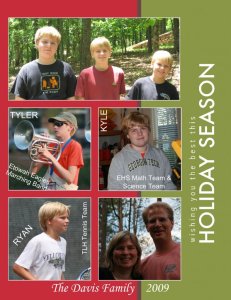 This is what I created using the My Digital Studio. Here are some basics steps on how to do this:
1. Open MDS and choose Greeting Card as the project type.
2. Choose 4-1/4″ x 5-1/2″ Portrait.
3. Choose a Designer template.
4. Choose Christmas Jingle – 4.25 x 5.5 – card 3.
5. For the Page Arrangement – just click Next – I only created one page.
6. Choose Pick and Click – Insert Photos Individually.
7. Give your project a name and click FINISH. MDS will create the card you selected.
8. I removed the embellishments and greeting by clicking on each one and hit the DELETE key.
9. I moved the Chocolate Chip strip over to the left to about the 2-1/2″ mark.
10. I enlarged the Old Olive area towards the left to meet the Chocolate Chip strip and to the right to the end of the bleed area.
11. I added a photo box – creating about 1-1/2″ square. I copied this photo box four times so that all my photo boxes would be the same size. I moved each box into position and turned on the GRID and SNAP TO GRID to help align them. The top box I enlarged to be the width of the two lower boxes.
12. I added the photos to each box. I used the ZOOM IN tool and CROP tool to adjust my photos. I also added a thin white mat around all the photos on the page.
13. I added a STAMP from Season of Cheer, rotated it 90 degrees and changed the ink color to white. I positioned this in the Old Olive area next to my photos.
14. I added several text boxes. One at the bottom has our name and the year – the text is white. The others are also white text and put on top of the photos, I rotated them on each photo to position them where I wanted.
Once the project is complete you can CHECK PROJECT – I checked the page for errors – there were none.
Then you can SHARE PROJECT. From here I exported mine to a .jpg file. And then used my photo edit software to resize it to be a 4×6 so I could print it as a photo.
Maybe you can try creating something like this in MDS also. My sister-in-law created her Christmas Letter using MDS – she create an 8-1/2 x 11 scrapbook page that she printed on her computer at home on nice paper. Then she bought envelopes and put them in the mail. I got mine a day or two ago.
One more family related item – we got a phone call yesterday from Kennesaw State University – this is where Kyle is going to school for his senior year of high school as a Joint Enrollment student (he gets both high school and college credit at the same time) – anyway they were calling to tell him he won the award for Outstanding Student from all of the Joint Enrollment students that attended. The award was for the student with the highest GPA and the most credit hours. We are very proud. He also had straight A’s and is on the President’s List (that is a 4.0 GPA). He’ll be invited to an awards ceremony in April along with the Outstanding Students from all the other majors at the university. Can you tell I’m a proud mom?
Have a great day!
 I wanted to share with a card made by my friend, Yvonne. She sent this to me for Christmas and it is gorgeous. I call it a fancy fold card. The front is scored and folded back. The ornament outline is cut on one half only so that the ornament image shows through on the front and the inside. The images from Delightful Decorations are stamped and embossed in White. The one on the inside has the half pearl from the Pretties Kit in the center.
 Yvonne added some silver cord at that fold so it sits at the top of the ornament. Either side of the card has a piece of the Flocked paper from the Christmas Cocoa Specialty paper and a layer of Whisper White card stock that was punched with the Eyelet border punch.