Jan 29, 2010 | My Digital Studio, Scrapbook Pages |
I made another page with Stampin’ Up!s My Digital Studio yesterday. Another lesson from Heather’s MDS class.
 On this page I used the Oval punch and made it super big and then filled it with Not Quite Navy designer series paper and matted in black. The title is a text box using a font I found on my computer that looked like wood slats so it matched the picnic table in the photos.
I add black brads as accents on the two pieces of designer paper.
The photos are actually just two different photos – the left shows the whole scene. The bottom right is the same photo focused on the fire. And the top right photo is another one in the series and I wanted to focus more on Ryan and his concentration. The original photo was actually in the other direction but it looked funny stacked on the bottom photo so I used the Photo Effects option in MDS and created a Mirror Image.
The text is directly on the photo – which is something really cool about creating a Digital Scrapbook Page.
Thanks for looking today! Come back tomorrow for a super cute project that I made for the Create with Connie & Julie class challenge…


Jan 25, 2010 | My Digital Studio, Scrapbook Pages |
 I made another My Digital Studio page. This one uses the Custom Background feature. You can select a photo to be your page background. This is a great option if you are making calendars and since you can also adjust the opacity you can add a background behind the grid on a calendar. This is not a calendar but just a scrapbook page.
I also used the Photo Shape option – you can adjust the crop and adjust into a circle if you need to. On my photo shapes I added a black mat – size 2, and a drop shadow ( I used the default setting).
I added several text boxes – one for the title, one for the journaling and one for the photo. The photo on the right is my family – my parents and my brother with his wife and then my cousin who was visiting from Germany. We are the Lenkeit’s.
The left photo is my brother and my dad – my brother was the Commodore of the sailing club for 2009 and my dad was the Commodore several years ago. The center photo is a the commissioning ceremony where Michael was presented with his Commodore Portrait.
I had to marry someone with an easy name since nobody could pronounce or spell Lenkeit. So I ended up as a Davis – you can’t get any easier than that!
This page was quick to create once I decided on my pictures – it took only a few minutes.
Thanks for stopping by today – I hope you have a great week and will come back to see me again.
Jan 19, 2010 | family, My Digital Studio, Scrapbook Pages |
Last night and this morning I worked on another scrapbook page using the My Digital Studio. I am taking the online class that Heather Summers is offering. For the moment I skipped ahead to lesson 6 and did a page for that one – I’ll go back to the others later.
 Since the last page was about Ryan – this time I decided to create a page about Tyler. These are photos of Tyler and the Etowah Marching Band at one of the band competitions they went to this fall. I picked a variety of pictures of the performance. Two of the photos have circles that highlight where Tyler is. The lower left photo is an octet that played at the end of the performance. I need to add a little more journaling so that others will know that it is Tyler in the band.
Stampin’ Up! supplies:
– My Digital Studio software
– Background – color matched to the blue in the band logo at 90% Opacity with text at 100% to create the background
– Stamps –Thought’s & Prayers for the tree, School Days for the circle
– Embellishments – Modern label punch, white grosgrain ribbon, black brads
The bands show this year was titled “A Day in the Park”. I’ll need to create another page showing all of the things going on at the beginning before they started playing – the kids split up into groups like they were at a park and did all different things – played ball, frisbee, had a picnic, walked the dog, etc. It was a very fun show. The closer was the octet playing while it “rained” the rest of the band went and got in a huddle under umbrellas. The drum major and one of the color guard girls did a little “dance” where he bring her the umbrellas and twirls her around – they end with the “kiss” behind the umbrella and she kicks up her leg. It was really cute.
Thanks for visiting today.
I’m going to meet a new demonstrator friend, Jenn, tonight and join her at the Ronald McDonald House to do some stamping with the guests that are there.
Jan 18, 2010 | My Digital Studio |
I see a lot of people asking questions about My Digital Studio Downloads and how to get them, what is available, where to see pictures, etc. I decided it might be helpful to add some information to my blog.
I have two new pages that you can access on my side bar on my blog. Under Helpful Information – there is a My Digital Studio section. One page is about the Digital Downloads including a link to a pdf document on the instructions for getting a download and a list of all the additional downloads that have been released. The other page is about updates to the software.
I’ll be adding more informational pages about My Digital Studio over time.
Thanks so much and I hope you will find this information useful.
Jan 15, 2010 | My Digital Studio, Scrapbook Pages |
Last night I made a scrapbook page using the My Digital Studio. I am taking the online class that Heather Summers is offering. She has a video each day showing us different things with the My Digital Studio.
 These are photos of Ryan playing the the State Tennis Tournament at the end of the summer. I tried to pick all the action shots of him.
Stampin’ Up! supplies:
– My Digital Studio software
– Background – color YoYo Yellow at 60% Opacity
– Stamps – Extreme Elements – black at 50% Opacity
– Photos are matted in White with a 2 size border
– Embellishments – black brads
What took me the longest was choosing the photos that I wanted to use. I had so many from that weekend. These are from the first day. I need to create one of the team and also Ryan on the second day. The team didn’t win enough matches to make it to the finals rounds that were played on the third day.
The winter season just started again. Saturdays matches were “Snowed/iced” out so the played make-up matches yesterday. Ryan and his partner Holly played the mixed-doubles line and won. The last game was a tie-breaker and Ryan and Holly were losing 1 to 6 in a 7 point game – they came back and ended up beating them 13 to 11 – you have to win by 2 points in the tie breaker.
Thanks for visiting today.
Dec 17, 2009 | Christmas, My Digital Studio |
My second post for today. I have a variety of Christmas cards made – I didn’t end up making a bunch of just one design because I have made so many over the last couple of months I decided to just use the ones I already have made. If I run short then I’ll make something else. The problem is that we like to include a photo and I didn’t have a good family photo of all 5 of us. So I decided to try using MDS to create a “photo” for my hand made cards. I also wanted to print it locally so that I can pick it up today or tomorrow. I had everything made in MDS and was about to select the button to print copies of my photo and decided to do a preview – oh no – part of my beautiful creation was getting cut off….
So this is what happens – in the Stampin’ Up! My Digital Studio software I selected to create a card – I selected to create a 5-1/2 x 4-1/4 size card – but when I went to upload and get it printed the choices for printing a photo are 4 x 6 – so it was cutting off part of my card in order to fit into the size that the photo prints. My solution this time was to pull up my card into my photo editing software and then change the aspect ratio to be a 4 x 6 photo – this added white space on one end of my photo. I saved that and will print it with the white space which I will then cut off once I get them home. Now they will fit inside my 5-1/2 x 4-1/4 cards that I created.
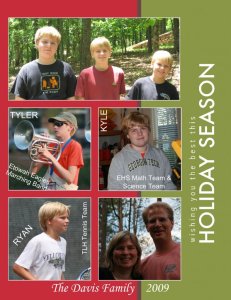 This is what I created using the My Digital Studio. Here are some basics steps on how to do this:
1. Open MDS and choose Greeting Card as the project type.
2. Choose 4-1/4″ x 5-1/2″ Portrait.
3. Choose a Designer template.
4. Choose Christmas Jingle – 4.25 x 5.5 – card 3.
5. For the Page Arrangement – just click Next – I only created one page.
6. Choose Pick and Click – Insert Photos Individually.
7. Give your project a name and click FINISH. MDS will create the card you selected.
8. I removed the embellishments and greeting by clicking on each one and hit the DELETE key.
9. I moved the Chocolate Chip strip over to the left to about the 2-1/2″ mark.
10. I enlarged the Old Olive area towards the left to meet the Chocolate Chip strip and to the right to the end of the bleed area.
11. I added a photo box – creating about 1-1/2″ square. I copied this photo box four times so that all my photo boxes would be the same size. I moved each box into position and turned on the GRID and SNAP TO GRID to help align them. The top box I enlarged to be the width of the two lower boxes.
12. I added the photos to each box. I used the ZOOM IN tool and CROP tool to adjust my photos. I also added a thin white mat around all the photos on the page.
13. I added a STAMP from Season of Cheer, rotated it 90 degrees and changed the ink color to white. I positioned this in the Old Olive area next to my photos.
14. I added several text boxes. One at the bottom has our name and the year – the text is white. The others are also white text and put on top of the photos, I rotated them on each photo to position them where I wanted.
Once the project is complete you can CHECK PROJECT – I checked the page for errors – there were none.
Then you can SHARE PROJECT. From here I exported mine to a .jpg file. And then used my photo edit software to resize it to be a 4×6 so I could print it as a photo.
Maybe you can try creating something like this in MDS also. My sister-in-law created her Christmas Letter using MDS – she create an 8-1/2 x 11 scrapbook page that she printed on her computer at home on nice paper. Then she bought envelopes and put them in the mail. I got mine a day or two ago.
One more family related item – we got a phone call yesterday from Kennesaw State University – this is where Kyle is going to school for his senior year of high school as a Joint Enrollment student (he gets both high school and college credit at the same time) – anyway they were calling to tell him he won the award for Outstanding Student from all of the Joint Enrollment students that attended. The award was for the student with the highest GPA and the most credit hours. We are very proud. He also had straight A’s and is on the President’s List (that is a 4.0 GPA). He’ll be invited to an awards ceremony in April along with the Outstanding Students from all the other majors at the university. Can you tell I’m a proud mom?
Have a great day!

 On this page I used the Oval punch and made it super big and then filled it with Not Quite Navy designer series paper and matted in black. The title is a text box using a font I found on my computer that looked like wood slats so it matched the picnic table in the photos.